To fix the “device not responding” issue with your smart fan on Google Assistant, first, verify that your fan is compatible and properly connected through the Google Home app. Make sure you’ve assigned a clear name and configured voice commands correctly. Keep your device firmware updated and try customizing commands for better recognition. If you follow these steps, you’ll get consistent results; otherwise, explore additional tips to guarantee smooth control.
Key Takeaways
- Verify that your smart fan is compatible with Google Assistant before setup.
- Ensure the fan is properly configured and linked through the Google Home app.
- Use custom voice commands and specific phrases for better recognition and responsiveness.
- Regularly update the fan’s firmware and Google Home app to fix bugs and improve compatibility.
- Double-check Wi-Fi connections and restart devices to resolve persistent “Device Not Responding” errors.
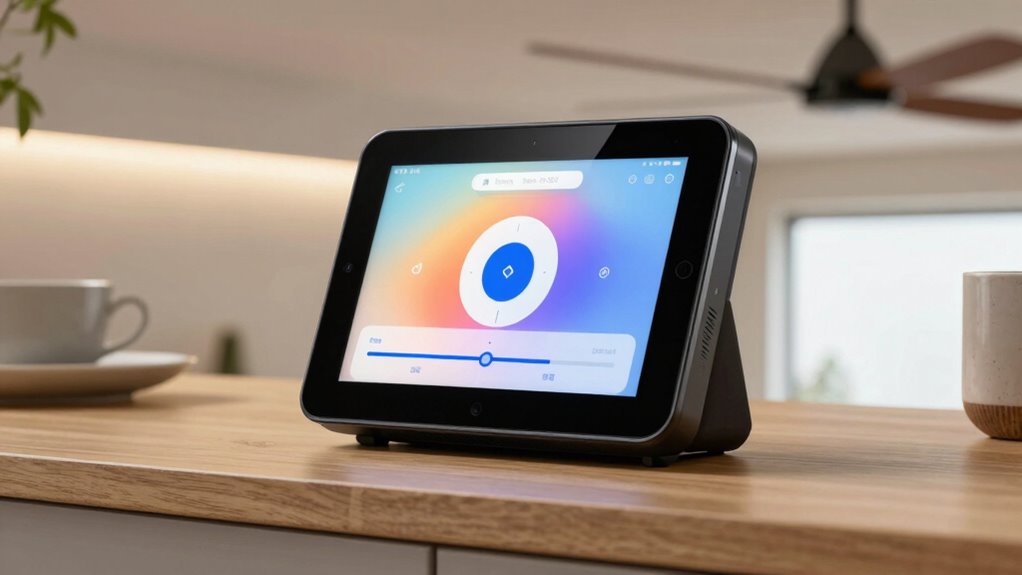
If you want to easily manage your fan with minimal effort, Google Assistant Fan Control makes it simple. You can control your fan with just your voice, and that convenience is only enhanced when you explore voice command customization. Customizing your commands allows you to set up specific phrases that turn your fan on or off, change speeds, or adjust oscillation, making the experience more natural and tailored to your preferences. To get the most out of this feature, you should verify that your devices are compatible with Google Assistant. Device compatibility guarantees that your smart fan responds accurately to your commands and that the setup process runs smoothly. Before you start, double-check that your fan and any related smart devices are compatible with Google Assistant; not all smart fans are supported, and some may require specific integrations or firmware updates. Ensuring Device compatibility is essential for reliable operation and seamless integration within your smart home ecosystem. Once you’ve confirmed compatibility, you’ll want to set up your smart fan through the Google Home app. During setup, pay close attention to the device’s configuration options to enable voice command customization. Most compatible fans allow you to assign specific names and phrases, which can make controlling your fan more intuitive. For example, instead of generic commands, you can say, “Hey Google, turn on the living room fan,” or “Hey Google, set the fan to high speed,” making commands more natural and quick. This level of customization minimizes the chances of miscommunication and ensures your commands are understood clearly, reducing the likelihood of errors like “device not responding.”
Frequently Asked Questions
Can I Control Multiple Fans With Google Assistant Simultaneously?
Yes, you can control multiple fans simultaneously with Google Assistant. You just need to set up smart home integration for each fan and group them into a single device using the Google Home app. Then, you can customize voice commands to control all fans at once. This makes managing your fans easier, allowing you to turn them on or off with simple voice commands and improving your smart home experience.
Does Google Assistant Support Third-Party Fan Brands?
Did you know over 30% of smart home users want more fan compatibility? Google Assistant does support third-party fan brands, making it easier to integrate various devices into your smart home. With third-party integration, you can control different fan brands through Google Assistant, even if they aren’t made by Google. Just verify your fans are compatible with Google Assistant, and you’ll enjoy seamless voice control across multiple brands effortlessly.
How Do I Reset the Google Assistant Device for Fan Issues?
To reset your Google Assistant device for fan issues, start with voice command troubleshooting by saying, “Hey Google, restart device.” If that doesn’t work, perform a device reset procedure by unplugging it, waiting 10 seconds, then plugging it back in. This resets the system and often resolves device response problems. Make sure your app is updated and your Wi-Fi connection is stable to prevent future issues.
Is There a Way to Schedule Fan Operation via Google Assistant?
They say “time waits for no one,” so you can schedule your fan with Google Assistant’s voice commands and scheduling options. Simply tell your device, “Hey Google, set the fan to turn on at 6 PM,” or use the app to create routines. This way, you automate your fan’s operation effortlessly, ensuring comfort without constantly adjusting settings. Use voice commands and scheduling options to keep your environment just right.
Why Does My Fan Disconnect Frequently From Google Assistant?
Your fan disconnects frequently from Google Assistant due to poor fan connectivity or network issues. To fix this, try device troubleshooting steps like restarting your Wi-Fi router, ensuring your fan is within range, and updating both your fan’s firmware and the Google Home app. Make sure your device is properly linked and on the same Wi-Fi network. These steps help stabilize your connection and prevent frequent disconnections.
Conclusion
Now that you’ve got the fix for the “device not responding” issue, you can get your Google Assistant fan control back on track. Just remember, sometimes a small tweak can make a big difference, so don’t be afraid to experiment a little. Keep troubleshooting patiently, and you’ll have your fan working smoothly in no time. After all, Rome wasn’t built in a day, and tech issues often require a bit of persistence.