If your smart ceiling fan won’t connect, start by checking your remote’s batteries and ensuring it’s within range. Next, reset both the remote and fan to clear any glitches, and re-pair them carefully following the manual. Confirm your smartphone or tablet is on the same Wi-Fi network, and update the app and firmware if needed. For persistent issues, a factory reset often does the trick. Keep these tips in mind, and you’ll find hidden solutions when you explore further.
Key Takeaways
- Ensure the fan’s firmware is up to date to fix connectivity glitches.
- Re-pair the remote or app following manufacturer instructions to establish a fresh connection.
- Restart your Wi-Fi router and confirm network stability for reliable communication.
- Reset the fan and remote to factory settings before re-setup to resolve persistent issues.
- Verify all components are compatible and use the correct pairing procedures for your specific fan model.
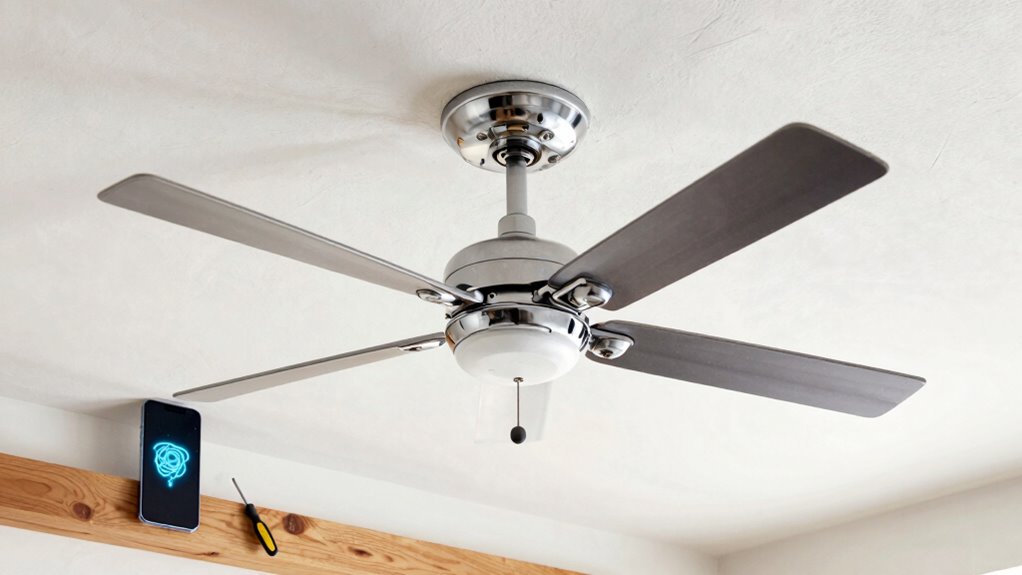
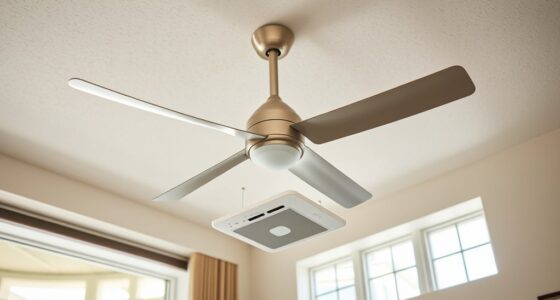
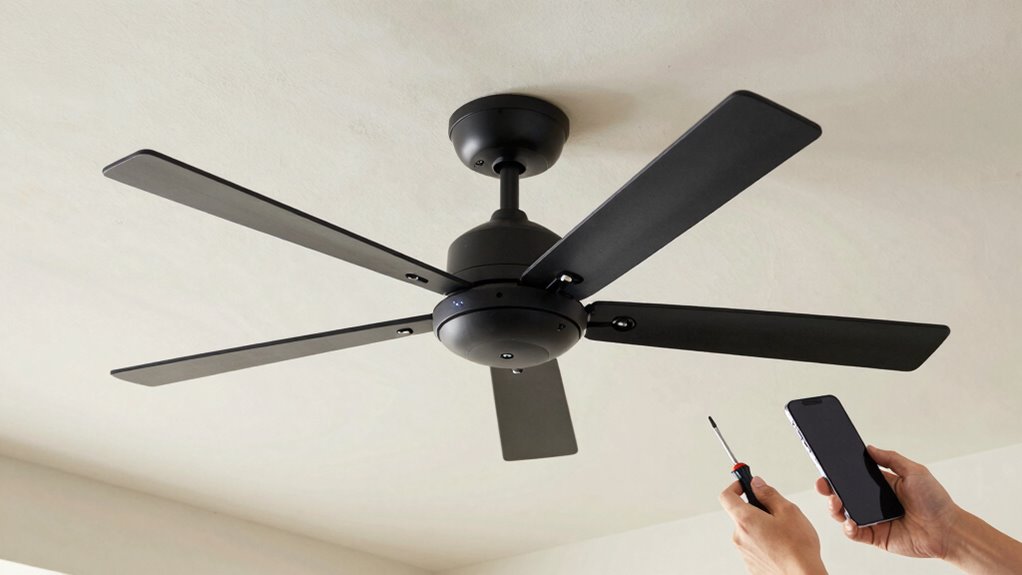
If your smart ceiling fan isn’t connecting properly, troubleshooting the issue can seem intimidating, but many problems are simple to fix. One of the most common hurdles is remote troubleshooting. Sometimes, the remote control loses its pairing or isn’t functioning correctly. First, ensure the remote has fresh batteries and is within the recommended range. If the remote isn’t responding, try re-pairing it with your fan. Usually, this involves pressing specific buttons or following a pairing mode outlined in your user manual. Remember, sometimes a simple reset of the remote or the fan itself can clear out minor glitches that prevent connection.
Reset remote or fan, check batteries, and re-pair to fix connection issues quickly.
Another key factor that often causes connection issues is app compatibility. Many smart fans rely on companion apps for setup and control, but compatibility problems can arise if your device’s operating system is outdated or if the app hasn’t been updated recently. Check that your smartphone or tablet meets the app’s minimum requirements, and update both the app and your device’s OS if needed. Sometimes, the app may not recognize your fan due to software version mismatches. In those cases, uninstalling and reinstalling the app can resolve lingering bugs or compatibility issues. Also, verify that you’re using the correct version of the app designed for your specific fan model, as different models might have slightly different app requirements.
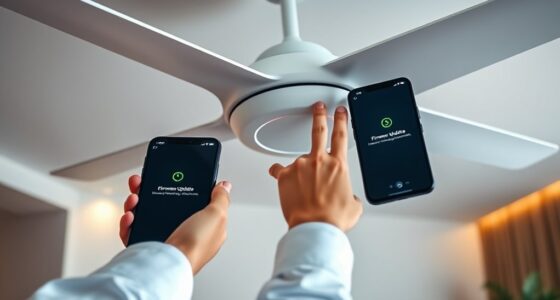
When troubleshooting app compatibility, it’s also worth ensuring your Wi-Fi network is stable and that your phone is connected to the same network as the fan — especially if your fan connects via Wi-Fi rather than Bluetooth. Many connection problems stem from network issues rather than the device itself. Restarting your router can sometimes resolve underlying network conflicts. Additionally, make sure your fan’s firmware is updated, since manufacturers release updates to fix bugs and improve connectivity. If your fan has a manual update process, follow the manufacturer’s instructions carefully.
Finally, understanding the importance of modern kitchen technology can help you streamline your smart home setup and avoid these issues altogether. If these steps don’t resolve the connection issue, consider resetting your smart fan to factory settings. This often clears out any corrupt configurations or pairing data that might be blocking a new connection. After the reset, go through the setup process again, paying close attention to pairing instructions, app prompts, and network settings. Remember, patience is key; sometimes, a fresh start is all it takes to restore reliable connectivity. By systematically addressing remote troubleshooting and app compatibility, you’ll often find the fix is simpler than you initially thought, saving you time and frustration.
Frequently Asked Questions
Can I Use a Universal Remote Instead of the App?
Think of your smart fan as a musical instrument; a universal remote can sometimes be the right key, but not always. You can try using universal remotes, but remote compatibility varies widely. Many universal remotes won’t work with smart ceiling fans because they rely on specific signals or apps. Check your remote’s compatibility first, and remember, the app often provides the most reliable control for smart features.
Does the Fan Require an Internet Connection to Function?
Your smart ceiling fan generally needs an internet connection for app control and setup, but it can often run manually without WiFi or internet dependency. Once it’s connected to your home WiFi, you can use the app, but if it loses internet or WiFi requirement, basic functions like turning on or adjusting speed still work via the remote or built-in controls. So, it’s not entirely dependent on internet for everyday operation.
How Do I Reset the Fan’s Wi-Fi Module?
Think of your fan’s Wi-Fi module as a radio that needs tuning. To do a Wi-Fi reset, locate the small reset button on the fan’s control panel or motor. Hold it down for about 10-15 seconds until you see the indicator light flash. This module troubleshooting step clears any glitches. Afterward, reconnect your fan to Wi-Fi, ensuring a fresh start for seamless control.
Will Replacing the Wi-Fi Module Fix Connection Issues?
Replacing the Wi-Fi module can fix your connection issues if the new module is compatible with your fan model. Make certain that the replacement matches your fan’s specifications and brand to avoid compatibility problems. If the current Wi-Fi module is faulty or damaged, a proper replacement often restores your connection. Double-check compatibility before buying, and consider consulting the manufacturer’s guidelines or a professional to ensure a smooth fix.
Is There a Compatibility Issue With Certain Smart Home Systems?
You might find that compatibility issues or system conflicts are causing your smart ceiling fan’s connection hiccups. Some fans don’t play well with certain smart home systems, so it’s wise to double-check compatibility before buying. If your system isn’t on the list of supported devices, you could experience connection troubles. To avoid frustration, verify your fan and smart home platform are compatible, and update firmware if needed.
Conclusion
Don’t despair if your smart ceiling fan refuses to connect. With a little patience and these simple steps, you’ll solve the snag swiftly. Stay steady, follow the fixes, and soon you’ll be savoring cool comfort with your smart fan smoothly syncing. Remember, persistence is key—problem-solving often takes a bit of trial and error. So, stay focused, stay flexible, and you’ll fix your fan’s fuss fast, freeing you from frustration and bringing back blissful breezes.