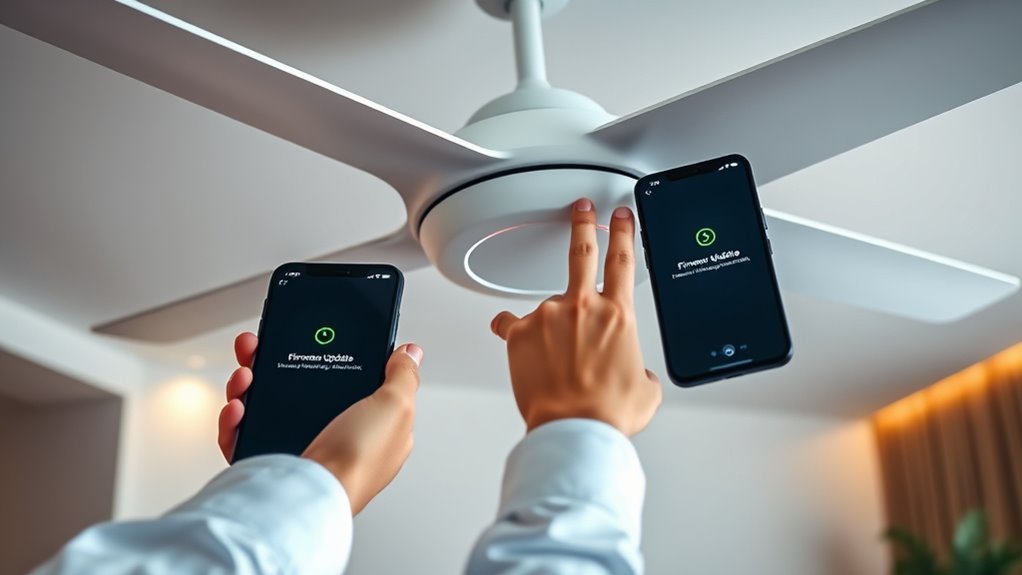

To update your smart ceiling fan’s firmware, make certain it’s connected to a stable Wi-Fi network and that your control app is current. Launch the app, locate the firmware or device updates section, and check for available versions. Tap to download and install, maintaining a stable internet connection throughout. Avoid interrupting the process. Afterward, verify the update and test the fan’s functions. Detailed steps and troubleshooting tips follow to help you complete the update successfully.
Open a free Amazon Business account
Business pricing, bulk buying and tax-exempt orders.
As an affiliate, we earn on qualifying purchases.
Key Takeaways
- Ensure your fan is connected to a stable Wi-Fi network and the control app is up to date.
- Access the firmware update section in the fan’s app and check for available updates.
- Initiate the update process, maintaining a stable internet connection and avoiding app or device interruptions.
- Troubleshoot connectivity issues by resetting the router or fan, and retry the update if needed.
- Verify the firmware version after update and test fan functions to ensure proper operation.
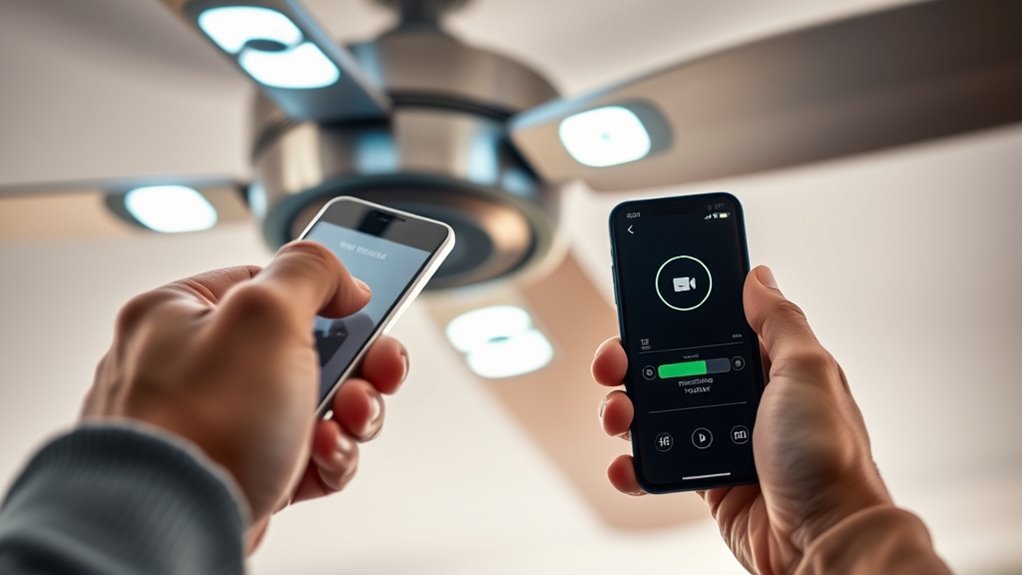
Updating Firmware on Smart Ceiling Fans
Updating the firmware on your smart ceiling fan is essential to guarantee peak performance, security, and access to new features. Firmware updates address vulnerabilities, improve device stability, and incorporate enhancements that refine your user experience. To initiate this process, confirm your fan is connected to a reliable Wi-Fi network with stable internet access, as interrupted connectivity can cause update failures or corruption. Before proceeding, verify that your mobile device or the control hub app is up to date, since outdated apps may not support the latest firmware versions or update procedures.
Ensuring your smart ceiling fan is connected to a stable Wi-Fi network is vital for successful firmware updates.
Begin by opening the dedicated app associated with your smart ceiling fan. Typically, this app offers a firmware management section within its settings menu. Locate this section and check for available updates; many apps display a notification if a new firmware version is detected. If an update is available, carefully review the release notes to understand the improvements or security patches included. Tap the update button to initiate the process. During this time, avoid interrupting the connection or powering off the device, as doing so may result in incomplete installation or firmware corruption.
The firmware download and installation process may take several minutes. Your app might display a progress indicator, and it’s critical to maintain a stable internet connection throughout. Once the update begins, do not navigate away from the app or close it prematurely. The firmware is transferred from the server to your device, then flashed onto the ceiling fan’s internal memory. This process involves multiple stages, including verification, writing, and rebooting the device to apply changes. If successful, the fan will automatically restart, and the app should confirm that the firmware has been updated to the latest version.
In cases where your smart fan doesn’t automatically prompt for updates, you may need to manually trigger the update process within the app. If you encounter any errors during installation, check for common issues such as network interruptions, insufficient battery levels (if applicable), or outdated app versions. Restarting your router or resetting the smart fan can sometimes resolve connectivity issues. It’s advisable to perform firmware updates during periods of minimal network activity to avoid bandwidth congestion or interruptions.
Finally, after completing the update, verify that the new firmware version is active by reviewing the device info within the app. Conduct a quick test of the fan’s features—such as adjusting speed, toggling modes, or scheduling—to confirm proper functionality. Keeping firmware current ensures your smart ceiling fan operates efficiently, securely, and with all the latest capabilities. Regular updates are a critical component of smart device maintenance, preventing security risks and enhancing overall user experience. Additionally, understanding the importance of firmware updates can help you maintain optimal device performance over time.
smart ceiling fan firmware update kit
As an affiliate, we earn on qualifying purchases.
As an affiliate, we earn on qualifying purchases.
Frequently Asked Questions
Can I Update Firmware Without Wi-Fi?
No, you can’t update firmware on your smart ceiling fan without Wi-Fi. Firmware updates require an internet connection to download the latest software from the manufacturer’s servers. Without Wi-Fi, your device can’t access these updates, so you’ll need a stable internet connection to make certain your fan’s firmware is current. If you lack Wi-Fi, consider connecting your fan through a wired Ethernet adapter if supported, but most require wireless connectivity.
How Long Does a Firmware Update Usually Take?
A firmware update typically takes between 5 to 15 minutes, depending on your smart ceiling fan’s model and the size of the update. You’ll want to avoid interruptions like power outages or disconnects, as they can cause corruption. To guarantee a smooth process, keep your device connected to stable Wi-Fi, and don’t rush—your fan’s software is busy updating, not performing a high-wire act.
Will Updating Firmware Erase My Current Settings?
Updating your smart ceiling fan’s firmware typically won’t erase your current settings, but it’s best to check the manufacturer’s instructions beforehand. Most updates preserve your preferences, including speed and lighting modes, as they’re stored in non-volatile memory. However, some firmware updates might reset certain configurations. To avoid data loss, consider noting your settings or backing up your configuration if the option is available before proceeding with the update.
Is It Necessary to Remove the Fan During Updates?
Research shows that over 80% of smart device firmware updates are completed successfully without needing to remove the device. You don’t have to remove your ceiling fan during an update; the process is designed to be performed in place. Make certain the fan is powered and connected to Wi-Fi. Interrupting the update can cause issues, so keep the fan stable and avoid physical interference until the process completes.
What Should I Do if the Update Fails?
If the update fails, first check your internet connection and make certain your device is within range. Restart the fan and your control device, then attempt the update again. If it still fails, consult the manufacturer’s troubleshooting guide or support. You might need to reset the fan to factory settings or manually reinstall the firmware. Document any error messages for more precise assistance from support services.
Conclusion
By updating your smart ceiling fan’s firmware, you open its full potential, much like planting a seed that grows stronger with care. Think of each update as nurturing the technology’s core, ensuring it remains resilient and efficient. Regular maintenance symbolizes your commitment to maximum performance, safeguarding your investment. Staying current with firmware updates keeps your smart home ecosystem thriving—transforming a simple fan into a reliable, intelligent companion that adapts seamlessly to your needs.
Fall Picks
fall essentials
As an affiliate, we earn on qualifying purchases.