
When your remote stops working, a sync reset is often the quick fix you need. To do this, turn off both the device and remote, then remove and reinsert the batteries or reconnect via Bluetooth or Wi-Fi. Sometimes, you’ll need to re-pair or update the firmware. This simple procedure usually clears glitches and restores communication. If you want to learn more about specific reset steps and troubleshooting tips, keep exploring further.

Get home appliances delivered free with Prime
- Fast, free delivery on millions of items
- Prime Video, Amazon Music and more included
- Member-only deals all year
Key Takeaways
- Turn off both the device and remote, then remove and reinsert batteries before turning everything back on.
- Perform the specific sync or reset button combination outlined in your device’s user manual.
- Re-pair or reconnect the remote in your device’s Bluetooth or Wi-Fi settings.
- Update the remote control app or device firmware to ensure compatibility and fix bugs.
- Clear minor glitches by resetting the remote and re-establishing the connection to restore proper function.
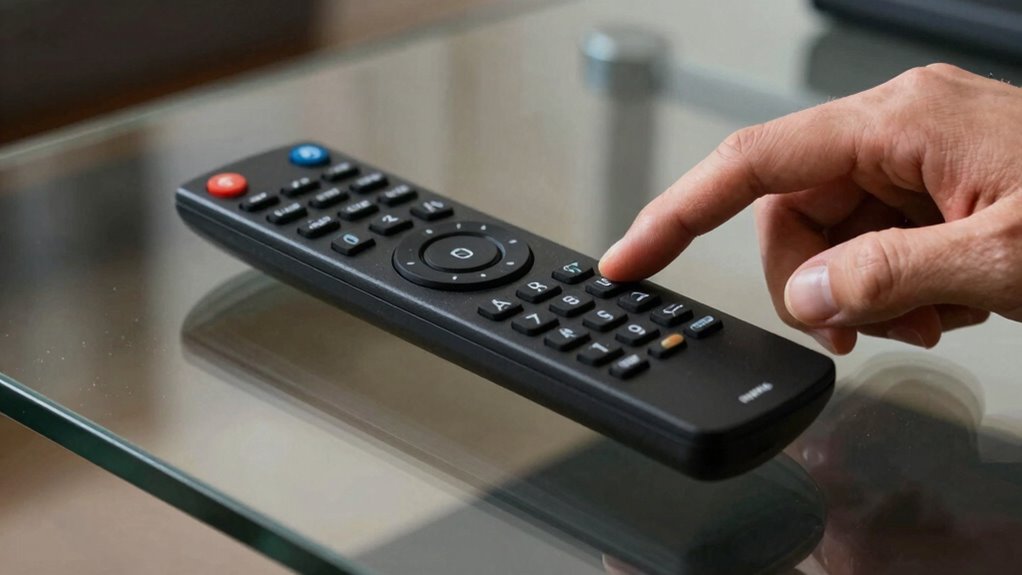
If your remote suddenly stops functioning, it can disrupt your entire day and leave you frustrated. Whether you’re trying to change the channel, adjust the volume, or turn on your smart TV, a non-responsive remote throws a wrench in your plans. The good news is that most remote issues can be fixed with a simple sync reset, which often restores functionality quickly. Understanding your remote control types and whether it’s compatible with your smartphone can help you troubleshoot more effectively.
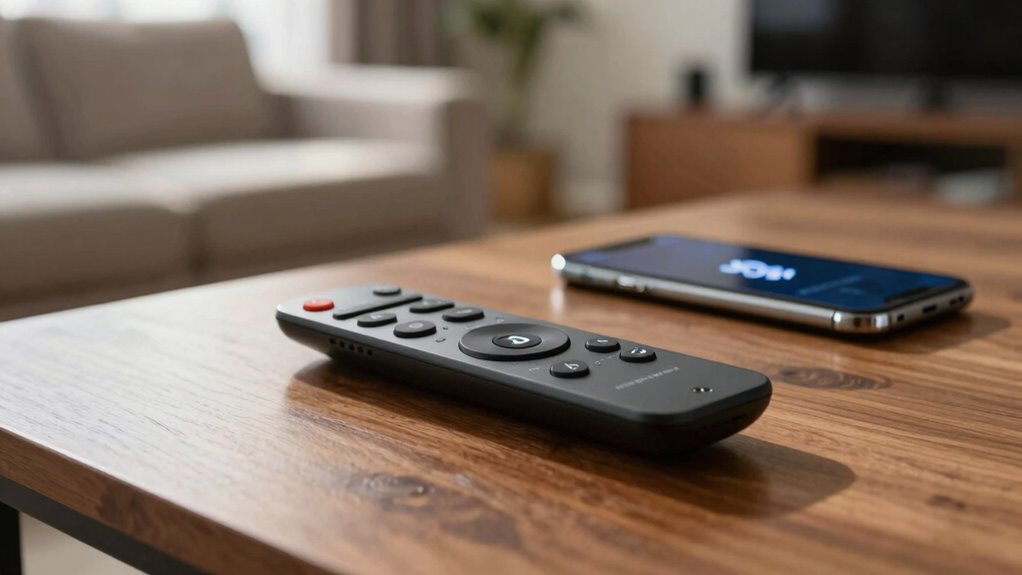
First, it’s important to recognize that there are different remote control types. Some are traditional infrared (IR) remotes that require direct line-of-sight to your device. Others are Bluetooth or RF (radio frequency) remotes, which can work from a distance and through obstacles. Many modern smart TVs and streaming devices also support remote control apps on your smartphone, adding a layer of convenience. These apps often mimic the functions of physical remotes and can be a lifesaver if your physical remote stops working. If your remote control is a smart remote with smartphone compatibility, you can try to re-sync it via the app, which may involve reconnecting Bluetooth or Wi-Fi settings.
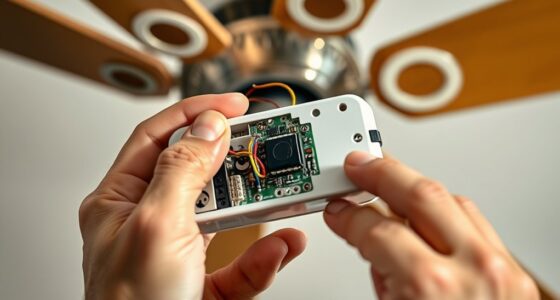
Additionally, smart remote technology is evolving rapidly, making troubleshooting more complex but also offering more solutions. The first step in a sync reset is to turn off your device and remote control, then turn them back on. For physical remotes, removing batteries and reinserting them can sometimes reset the connection. If your remote uses Bluetooth or Wi-Fi, ensure that your device’s settings recognize the remote. For smartphone-compatible remotes, check the app settings—sometimes, a simple re-pairing or revitalizing the connection within the app can resolve the issue. Many remote control types also have specific reset procedures outlined in the user manual, such as pressing certain button combinations or holding buttons for a few seconds. These resets clear any glitches in the pairing process.
If your remote is compatible with a smartphone app, you can also troubleshoot by uninstalling and reinstalling the app, or updating it to the latest version. Ensuring your device’s Bluetooth or Wi-Fi connection is active and stable is essential, especially for smart remote apps. Sometimes, interference from other devices or outdated software can cause disconnection issues, so keeping your device and remote firmware up to date is important. A sync reset often works because it forces the remote and device to re-establish their connection, clearing out any minor glitches or signal conflicts.
In many cases, performing a sync reset is all you need to restore your remote’s functionality. If problems persist after trying these steps, it might be time to replace batteries or consider a new remote control altogether. Remember, understanding your remote control type and smartphone compatibility can streamline the troubleshooting process, saving you time and frustration.
universal remote control batteries
As an affiliate, we earn on qualifying purchases.
As an affiliate, we earn on qualifying purchases.
Frequently Asked Questions
Can a Sync Reset Fix All Remote Control Issues Permanently?
A sync reset can fix many remote control issues temporarily, but it won’t solve all problems permanently. If unrelated troubleshooting steps like replacing batteries or updating your remote app don’t work, the reset might not be sufficient. Sometimes, hardware damage or software conflicts persist. To guarantee a long-term fix, consider checking for firmware updates, replacing the remote, or consulting professional support, especially if issues keep recurring despite syncing efforts.
How Often Should I Perform a Sync Reset on My Remote?
Think of your remote like a car engine; it needs regular tune-ups to run smoothly. You should perform a sync reset during remote maintenance every few months or if you notice sluggish responses. This reset frequency helps keep your remote functioning at its best, preventing minor glitches from becoming major issues. Regular resets ensure your remote stays responsive, much like a well-maintained vehicle, saving you frustration and potential replacements down the line.
Does the Remote Reset Affect Other Connected Devices?
No, resetting your remote generally doesn’t affect unrelated devices. When you perform a sync reset, it only targets the specific remote and its paired device. However, you should follow reset precautions to avoid unintended issues. Make sure other devices are powered off or disconnected if recommended. This way, you prevent any accidental interference, ensuring your reset only impacts the intended device and keeps everything else unaffected.
Is a Sync Reset Safe for All Types of Remote Controls?
Think of a sync reset as giving your remote a gentle reboot, like waking it from a nap. It’s generally safe for most remote controls, but you should do a compatibility check first. Make sure the batteries are fresh, as low power can interfere. If your remote uses specific firmware or hardware, double-check the manufacturer’s instructions to guarantee the reset won’t cause issues, especially with specialized devices.
What Are Alternative Troubleshooting Steps if Reset Doesn’T Work?
If reset doesn’t fix your remote, start by replacing the batteries to make certain they aren’t weak. Check for signal interference from nearby electronics or obstructions that could block the remote’s signal. Also, try cleaning the remote’s sensor and the device’s receiver. If issues persist, consider testing the remote on another device or consulting the manufacturer’s troubleshooting guide for specific advice.
Conclusion
When your remote stops working, resetting the sync offers clarity, restores control, and revives your devices. It’s simple enough to try, quick to perform, and effective enough to save your day. Remember, a reset isn’t just a fix—it’s a refresh, a restart, a reassurance that you hold the power to resolve issues. So next time, don’t hesitate—reset the sync, regain your control, and enjoy seamless entertainment once again.
Cold & flu season Picks
humidifiers
As an affiliate, we earn on qualifying purchases.