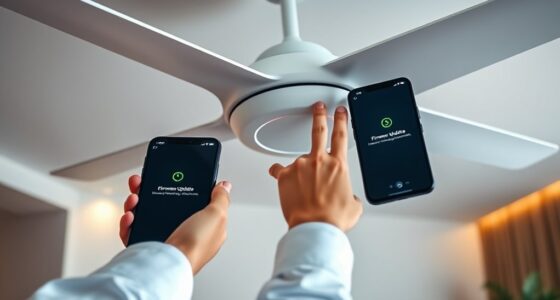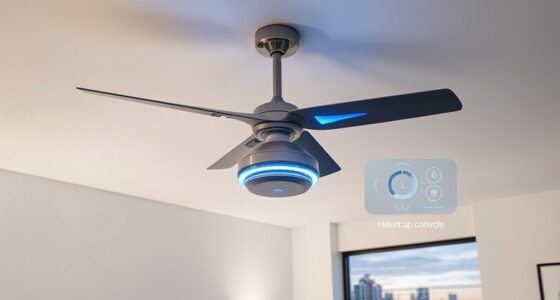
To configure geofencing for your smart ceiling fan, start by accessing its control app and ensuring firmware is up to date. Define the geographic boundary using coordinates or map selection, setting an appropriate radius for accurate detection. Link specific actions, such as turning the fan on or off, to entering or leaving this zone. Test the setup thoroughly and fine-tune boundary parameters as needed. Continuing with this process will reveal advanced tips to optimize your automation reliability.
Key Takeaways
- Access your fan’s app or platform and locate geofencing or location-based automation settings.
- Define the geofence boundary by setting coordinates and radius to suit your home environment.
- Link specific actions, like turning the fan on or off, to entering or leaving the designated zone.
- Test the geofence by simulating entry and exit to ensure proper response and adjust parameters as needed.
- Regularly monitor activity logs and refine boundaries to improve accuracy and prevent false triggers.
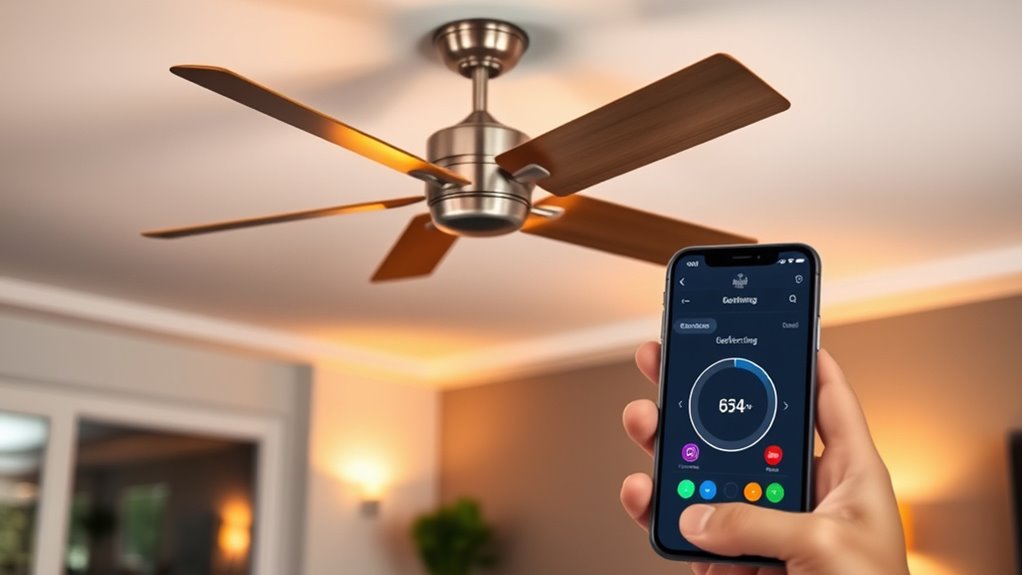
Configuring geofencing involves setting up virtual boundaries based on geographic locations to automate specific actions or trigger alerts when a device enters or leaves designated areas. This process requires precise identification of geographic coordinates, typically latitude and longitude, which define the boundary’s perimeter. To begin, access the smart ceiling fan’s companion app or control platform, ensuring your device firmware is up to date to support geofencing features. Locate the geofencing settings within the app’s configuration menu, often under automation or location-based controls.
Once within the settings, you will need to create a new geofence. This involves specifying the center point by inputting exact coordinates or selecting a location on a map interface. You can typically define the radius of the boundary in meters or feet, which determines the zone within which the automation is active. For a more precise setup, use GPS or Wi-Fi-based location services to establish the boundary. Accuracy is critical; a larger radius may trigger actions unnecessarily, while a smaller radius ensures precise activation. Confirm the boundary’s shape—most platforms support circular zones, although some advanced systems allow polygonal boundaries for complex areas.
Next, you must associate specific actions with the geofence. For a smart ceiling fan, these actions might include turning the fan on or off, adjusting speed, or changing modes based on whether you enter or leave the zone. Set clear conditions—such as activating the fan when you arrive home and turning it off when you leave—to maximize comfort and energy efficiency. Many systems allow you to customize triggers further, like setting time restrictions or combining geofencing with other sensors for more sophisticated control. Frictional unemployment can sometimes be turned into an opportunity by leveraging these innovative automation features to optimize energy use.
To guarantee reliable operation, test the geofence after configuration. Use your mobile device to simulate entering and leaving the designated zone, verifying that the fan responds accordingly. Precise testing helps identify boundary inaccuracies or delays caused by GPS signal quality or Wi-Fi connectivity issues. Adjust the radius or boundary shape as needed for top performance. Keep in mind that environmental factors, such as tall buildings or indoor interference, can impact location accuracy, so consider these when defining your zones.
Finally, save your configuration and monitor the system over time. Regularly review the logs or activity history within the app to confirm the geofencing responds correctly. Fine-tune the boundary size or trigger conditions if needed to prevent false activations or missed events. Properly configured, geofencing provides seamless automation, reducing manual control of your smart ceiling fan while enhancing energy efficiency and user convenience.
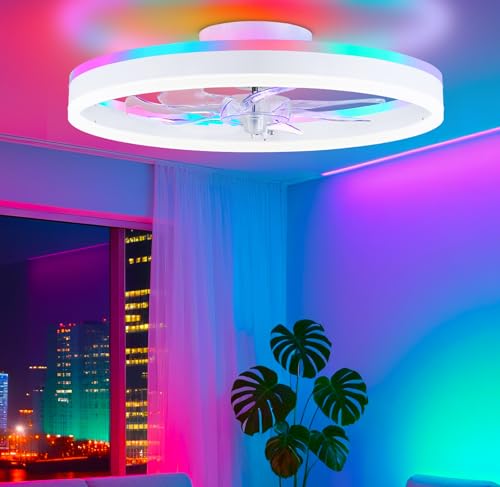
STERREN RGB Ceiling Fans with Lights, 20'' Smart LED Ceiling Fan with Remote/APP Control, Modern Low Profile Bladeless Chandelier Fan, Dimmable White Fandelier for Bedroom, Living Room, Kitchen
All-in-One Cooling & Illumination Ceiling Fan: Experience powerful, ultra-quiet airflow and perfectly 3 color temperature +RGB LED lighting…
As an affiliate, we earn on qualifying purchases.
As an affiliate, we earn on qualifying purchases.
Frequently Asked Questions
Can Geofencing Be Used With Multiple Fans Simultaneously?
Yes, you can use geofencing with multiple fans simultaneously, provided your smart home system supports multi-device management. Most modern smart fans allow you to create individual or group geofencing rules within the app. You simply set the geofence area once, then assign it to multiple devices. This enables synchronized operation—fans turn on or off collectively based on your location—enhancing convenience and energy efficiency.
How Accurate Is Geofencing Location Detection?
Geofencing location detection is typically accurate within 5 to 10 meters, depending on your device and environment. Studies show that GPS alone achieves around 5-meter precision outdoors, while indoor accuracy can drop due to signal interference. Using a combination of GPS, Wi-Fi, and Bluetooth can enhance reliability. For smart fans, this means reliable activation as you approach, but occasional inaccuracies may occur indoors, especially in areas with dense structures.
What Happens if the Geofence Zone Overlaps?
If the geofence zones overlap, your smart ceiling fan may experience conflicting signals, causing unpredictable behavior such as toggling between zones or failing to activate correctly. This overlap can lead to false triggers or delays in response, as the system struggles to determine the primary zone. To prevent this, verify zones are distinctly defined with minimal or no overlap, and adjust boundary parameters for precise detection and reliable operation.
Is There a Way to Temporarily Disable Geofencing?
Like a switch flipping, you can temporarily disable geofencing by toggling the feature in your app’s settings. Simply access the geofence control panel, turn off the geofence, and your fan won’t respond to location changes. This allows manual operation without interference. When you’re ready, re-enable the geofence to restore automatic functions. Remember, this quick disablement offers control without long-term disruption, ensuring seamless operation aligned with your needs.
How Does Battery Life Impact Geofencing Performance?
Battery life directly impacts geofencing performance because low batteries can cause the device’s GPS and location services to become less accurate or unreliable. When batteries are depleted, the device may struggle to detect your presence promptly, leading to delayed or missed triggers. To guarantee peak performance, keep your device’s batteries charged, and consider replacing them periodically, especially if you notice inconsistent geofencing responses.

Aqara Presence Sensor FP2, mmWave Radar Wired Smart Motion Sensor, Zone Positioning, Multi-Person & Fall Detection, Supports HomeKit, Alexa, Google Home, and Home Assistant, 2.4 GHz Wi-Fi Required
[𝐀𝐝𝐯𝐚𝐧𝐜𝐞𝐝 𝐌𝐮𝐥𝐭𝐢-𝐙𝐨𝐧𝐞 𝐃𝐞𝐭𝐞𝐜𝐭𝐢𝐨𝐧] The Aqara Presence Sensor FP2 (2.4GHz Wi-Fi only) outperforms traditional PIR motion sensors by using…
As an affiliate, we earn on qualifying purchases.
As an affiliate, we earn on qualifying purchases.
Conclusion
By properly configuring geofencing on your smart ceiling fan, you guarantee optimal energy efficiency and convenience. For example, a homeowner set the fan to turn off automatically when leaving a 500-meter radius, reducing energy waste. This precise setup minimizes manual adjustments, enhances comfort, and maximizes device longevity. Implementing accurate geofencing protocols allows you to leverage smart technology effectively, delivering seamless automation tailored to your lifestyle.

Dreo Smart Ceiling Fans with Lights, Low Profile Ceiling Fan with Alexa/App, 52'' Dimmable Lighting & Color Tuning, RGB Ambient Light for Living Room, Game Room, Easy Installation, Quiet, Black
Cool comfort exactly how you want it: This low-profile ceiling fan with lights delivers powerful 6040 CFM (average…
As an affiliate, we earn on qualifying purchases.
As an affiliate, we earn on qualifying purchases.

Kasa Smart Ceiling Fan Control & Dimmer Switch | Adjustable 4-Speed Fan & Brightness Control | Works w/Apple HomeKit, Alexa & Google Home | 2.4G Wi-Fi Only, Single Pole, Neutral Wire Required | KS240
【4 Fan Speeds】 Tailor your airflow to your exact preferences by choosing from four fan speeds for the…
As an affiliate, we earn on qualifying purchases.
As an affiliate, we earn on qualifying purchases.